














What is a Microsoft Teams Room Setup?
A Microsoft Teams Room is a dedicated meeting space where every hardware component is certified to run Microsoft Teams natively. This guide covers the planning and deployment process from start to finish.
If you're still evaluating which hardware to use, start with the Microsoft Teams Rooms devices overview before working through this guide. The steps below assume you have a room, a device, and a Microsoft 365 account ready to go.
A complete Microsoft Teams Room requires these hardware components.
Display
4K touch screen, typically 55" to 75". All-in-one devices bundle this with camera and compute.Camera
Wide-angle (90°+ HFOV), 4K recommended. AI framing for Teams Cloud IntelliFrame requires a certified camera.Microphone Array
Beamforming mic arrays pick up every speaker in the room without ceiling tiles or table mics.Speaker System
Front-facing speakers with built-in AEC (acoustic echo cancellation) ensure remote participants hear clearly.Compute Unit
Windows 11 device running Microsoft Teams Rooms software. All-in-one devices like D7X AI Board include this built-in. For BYOD setups, Bar Connect connects via USB‑C to a Windows laptop, the laptop provides the compute and runs Teams or Zoom. Bar Connect supplies the 4K camera, mic array, and speakers.Touch Controller
Used to join calls, control the room, and manage meeting settings. On the all-in-one D7X AI Board the built-in touchscreen is the controller, so no separate console is required. Modular rooms add a DTEN Mate Gen 2.Teams Room Setup Checklist
Use this checklist before deployment day. Click each item to mark it done, progress is saved as you go.
Room Size Planning
Display size, camera FOV, and microphone range all depend on room dimensions. Use this table to match your room to the right hardware configuration.
| Room Type | Room Depth | Capacity | Display | Recommended Device |
|---|---|---|---|---|
| Huddle Room | up to 12 ft (3.7 m) deep | 2 to 4 people | 55" | DTEN D7X AI Board 55" |
| Small Conference Room | up to 15 ft (4.6 m) deep | 4 to 6 people | 55" | DTEN D7X AI Board 55" |
| Medium Conference Room | 15 to 20 ft (4.6 to 6.1 m) deep | 6 to 10 people | 55" to 75" | DTEN D7X AI Board 55" (up to ~18 ft) · D7X 75" preferred |
| Large Conference Room | 20+ ft (6.1 m+) deep | 10+ people | 75"+ (dual optional) | D7X 75" with room essentials DTEN Vue Pro, Relay Speakers, and Mate Gen 2 for a better meeting experience |
Know your room type? Get a personalized recommendation.
A DTEN specialist will scope your rooms and recommend the right configuration.
Display Placement
Where and how you mount the display determines whether every participant in the room can see and be seen. These guidelines apply across all room sizes.
Wall mounting not an option?
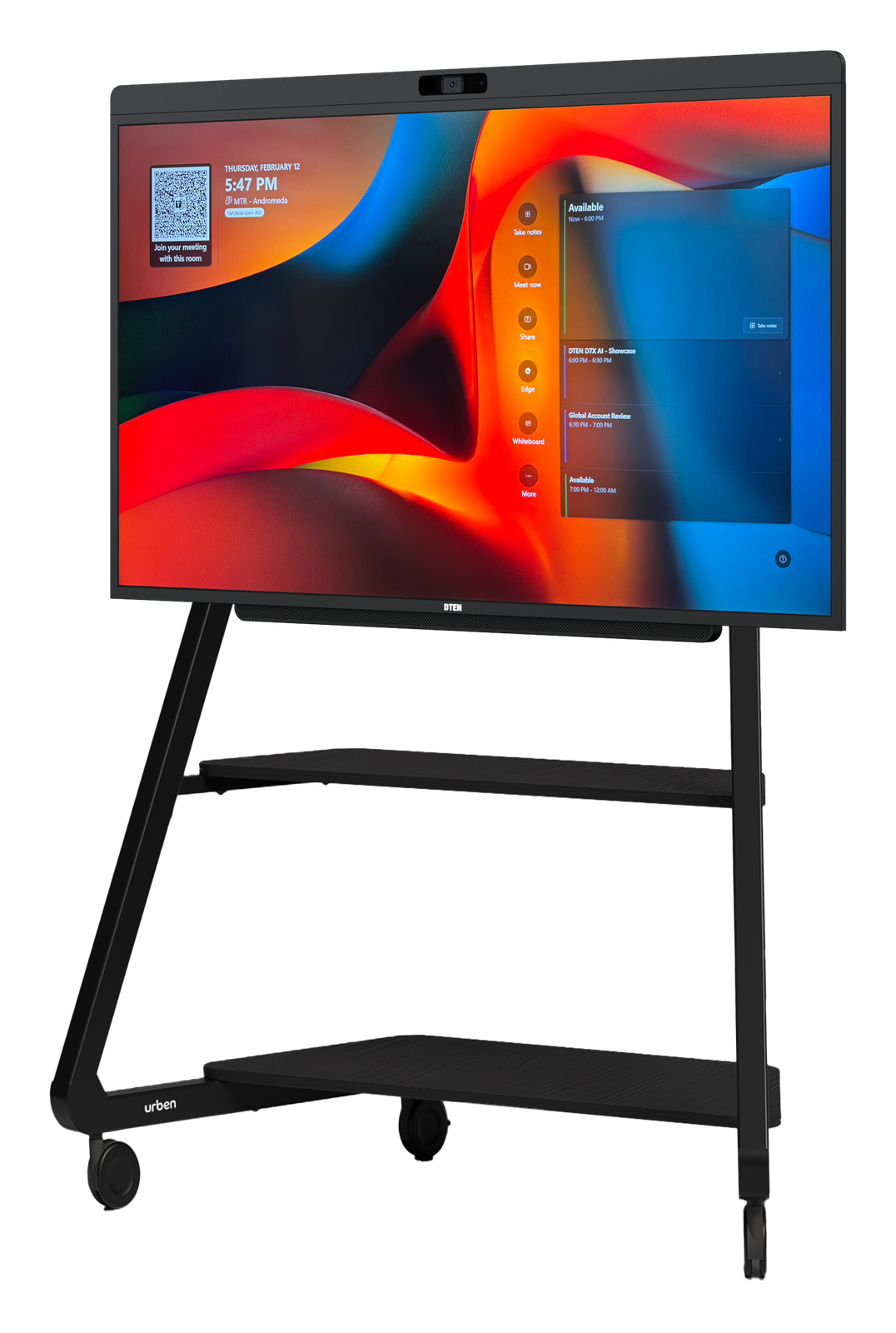
The DTEN D7X AI Board mounts on standard VESA 400×300 AV carts and floor stands, letting you position the device anywhere in the room without drilling. Useful for flex spaces, open offices, or rooms where wall mounting isn't permitted.
Camera Placement
Camera position directly affects how remote participants see the room. With an all-in-one device like the DTEN D7X AI Board this is solved by design, the camera is factory-integrated at the top-center of the display, so there's nothing to mount, align, or angle. The guidance below matters most if you're using a separate camera in a modular setup.
Not sure which device fits your room?
Talk to a DTEN specialist, free room assessment
We'll match the right hardware to your room size, budget, and IT environment.
Audio Planning. Microphones and Speakers
Audio is the most common failure point in meeting rooms, and the hardest to fix after installation. Voice pickup is a full signal chain, not a single spec. Microphone coverage, beam steering, echo cancellation, noise suppression, and speaker placement all have to work together. Plan the whole chain upfront.
Controller Placement
The controller is how users join calls, manage the room, and control the meeting. Where it sits depends on which DTEN setup you have.
D7X AI Board (All-in-One)
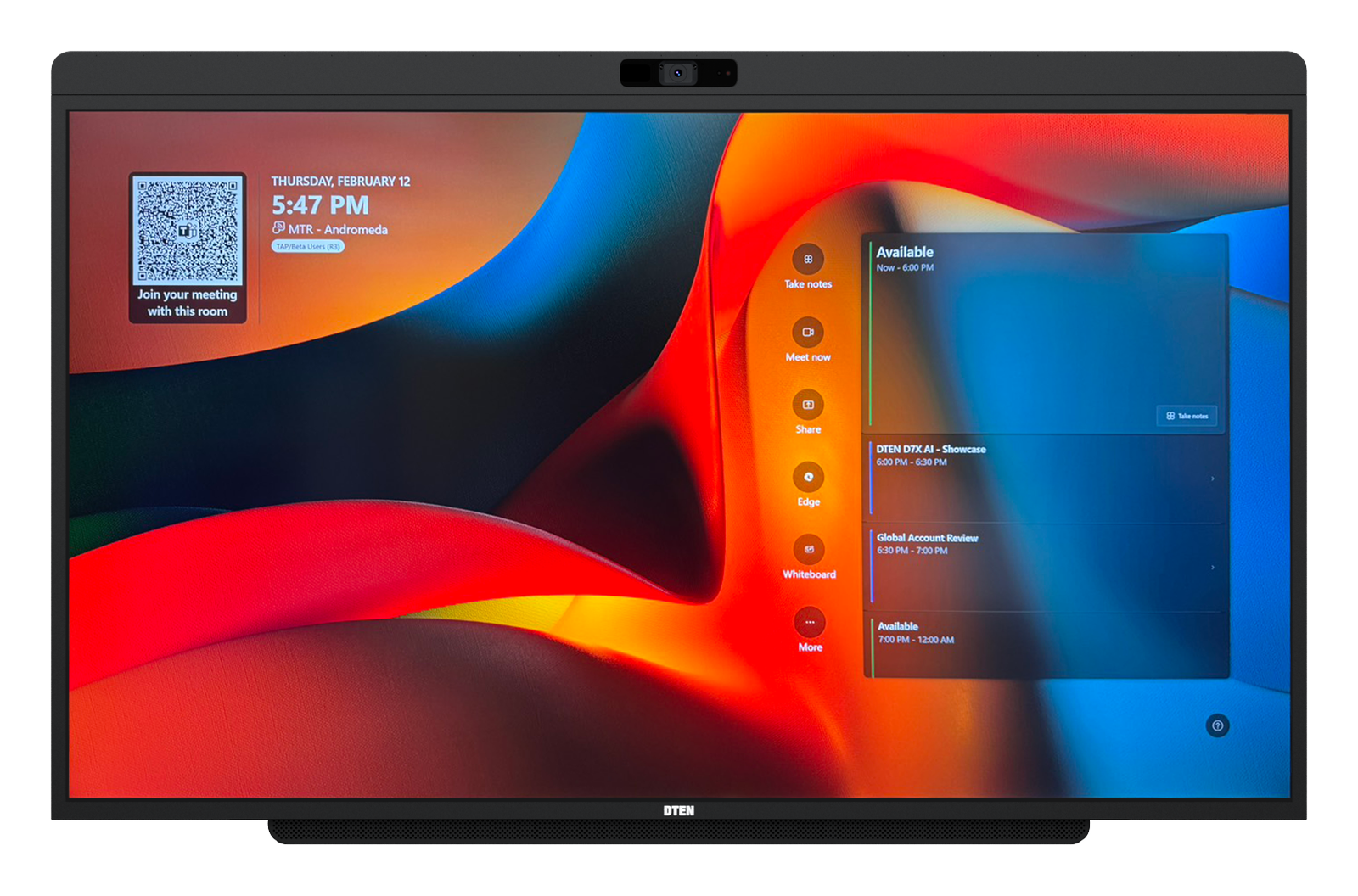
The D7X AI Board's built-in 4K touch display is the controller. Users tap the screen to join meetings, share content, and manage the call. No separate device needed on the table.
For larger rooms, add a DTEN Mate Gen 2 as a dedicated tabletop console so participants who sit far from the display can start and control meetings easily.
Bar Connect + Mate Gen 2 (Modular)
The DTEN Mate Gen 2 runs DTEN Mate OS and serves as the tabletop touch controller, supporting both Microsoft Teams and Zoom meetings. It also enables BYOD sessions via USB‑C.
Place it at the table end closest to the display. Connect to Bar Connect via a single network cable. For BYOD use, participants plug their Windows laptop into Bar Connect via USB‑C, the laptop provides the compute. Bar Connect handles camera, mic, and audio.
Network and IT Readiness
Network configuration is where most enterprise Teams Room deployments run into problems on go live day. Cover these areas before the device arrives on-site.
Bandwidth
Allocate at least 10 Mbps symmetric per room for HD video. Allow 20 to 30 Mbps for 4K rooms or heavy multi-screen sharing.
Wired Ethernet
Use wired Ethernet wherever possible. Wired delivers consistent latency and jitter required for real-time AV.
Firewall Rules
Open UDP 3478 to 3481 and TCP 443 and 80 for Teams media relay. Follow Microsoft's published network requirements for MTR.
VLAN / QoS
Place room devices on a dedicated AV VLAN with DSCP tagging to prioritize media traffic over general data.
MDM / Intune
Enroll via Intune or Autopilot before first boot. D7X AI Board runs Windows 11, managed with the same policies as any endpoint.
Remote Management
DTEN Orbit provides device health monitoring, OTA updates, and proactive alerts, free with every device. Orbit Pro adds a 15-minute response SLO and a 3-year warranty for fleets.
Common Setup Mistakes
Most deployment problems happen before the device arrives. Here are the five most common, and how to avoid them.
| Common Mistake | Why It's a Problem | Do This Instead |
|---|---|---|
| Choosing a display that's too large for the room | A 75" display in a 10×12 huddle room forces participants to turn their heads and creates a distorted viewing angle. | Size to the farthest viewer (AVIXA DISCAS). The back seat should be ≤ 6× the screen's image height. A back row ~14 ft away. |
| Mounting the display too high on the wall | High mounting forces participants to look up during calls, causes neck strain, and makes whiteboard annotation difficult from a seated position. | Center of screen about 3.5 to 4.5 ft from floor. Test with a seated person in the room before final mounting. |
| Skipping the Teams Room license | Without an MTR license, the device signs in as a personal Teams account, no room scheduling, no Cloud IntelliFrame, no Teams Rooms UI. | Create a resource mailbox in Microsoft 365 Admin Center and assign it an MTR Basic or MTR Pro license before the device arrives. |
| Using non-certified hardware with Teams | Third-party webcams and speakerphones plugged into a Windows PC do not deliver MTR features, no Cloud IntelliFrame, no Teams admin controls, no certified audio processing. | Only Teams Rooms certified devices (like DTEN D7X AI Board) unlock the full MTR feature set. Bar Connect is a BYOD video bar (DTEN OS) for Teams and Zoom BYOD sessions. Mate Gen 2 is a console add-on that works with DTEN systems. |
Recommended DTEN Setup
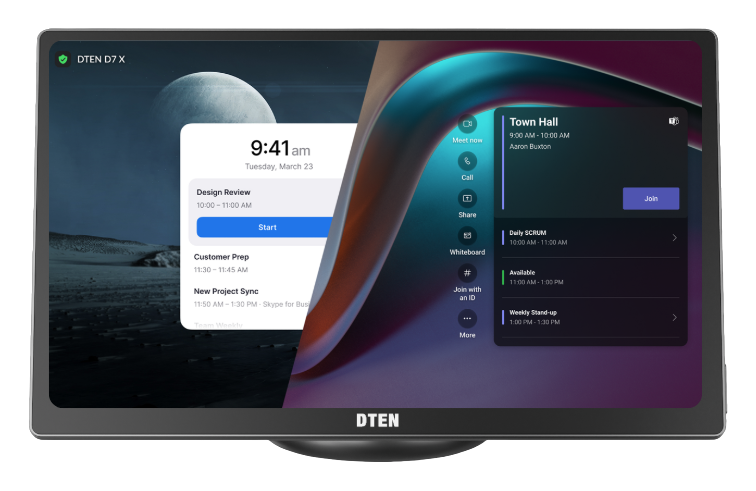
DTEN makes purpose-built Microsoft Teams Rooms devices certified by Microsoft and designed for the Windows 11 MTR platform. Here are the two most common deployment configurations.


DTEN Orbit, Free Remote Management, Orbit Pro When You Scale
Orbit Basic is included free with every DTEN device. Cloud-based monitoring, remote management, OTA firmware updates, room health alerts, and a 1-year hardware warranty, all without on-site visits.
Orbit Pro adds proactive, contractual support for teams managing AV at scale. A 15-minute response SLO (engineers engage 4 to 6× faster than Basic), a 3-year extended warranty with advance parts replacement and continuous updates, plus bulk fleet management and standardized profiles, so rooms stay productive for the full life of the deployment. It's operational coverage, not just an extended warranty.
Ready to Deploy?
Plan Your Microsoft Teams Room Setup with DTEN
Talk to a DTEN specialist about your room dimensions, IT environment, and rollout timeline. We'll recommend the right device configuration and can arrange an on-site or virtual demo.