


Start Poly Virtual USB before Windows Logon
Overview
This article describes how to allow the Polycom Trio virtual USB service to start before the DTEN/Zoom Windows Logon. Please visit the DTEN – Install Poly Virtual USB article on how to set up the virtual USB.
Please note: You can have the PolyVirtual USB start and be available as soon as Zoom launches. However, this requires the controller (Poly Trio) to be connected with the Zoom Room.
Please go into the ZoomAdmin Windows user and search for Task Scheduler
1. Click Create new Task
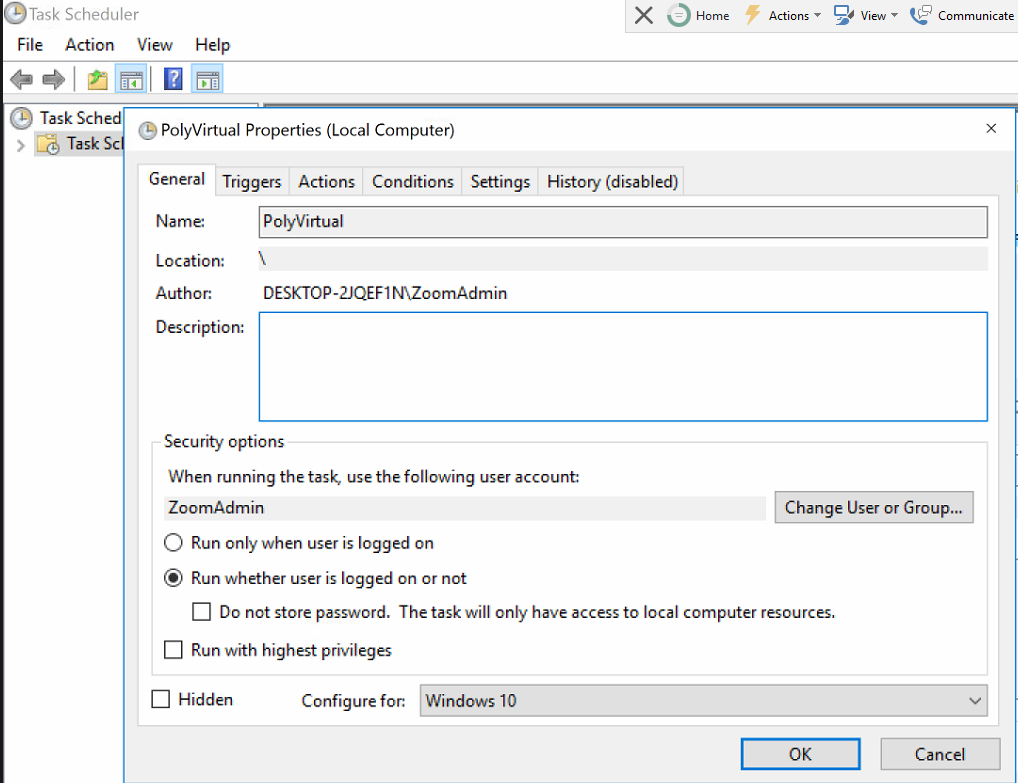
2. Under the General Tab, select Run whether the user is logged in or not
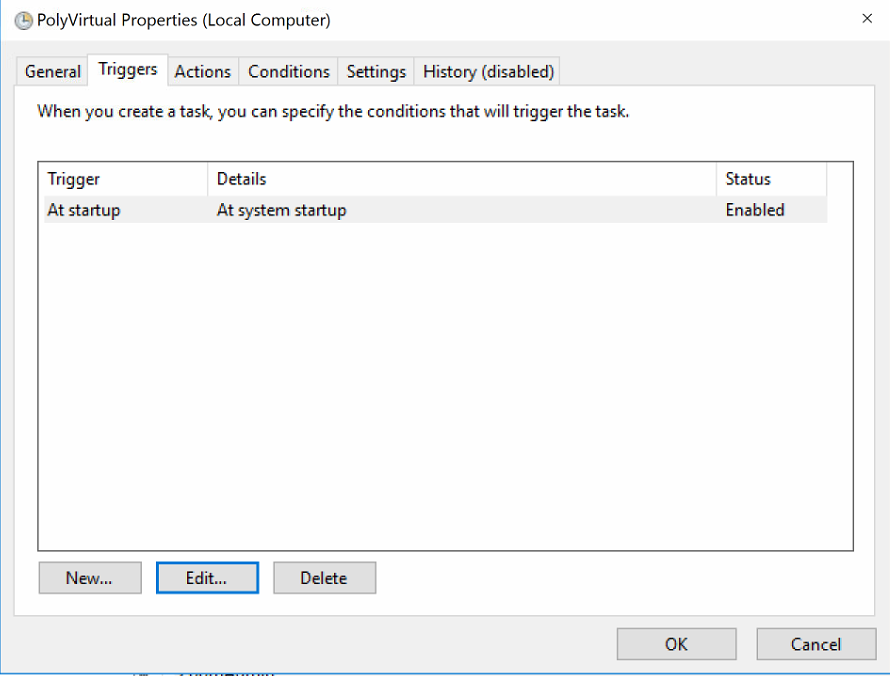
3. Under the Trigger Tab, choose At system startup
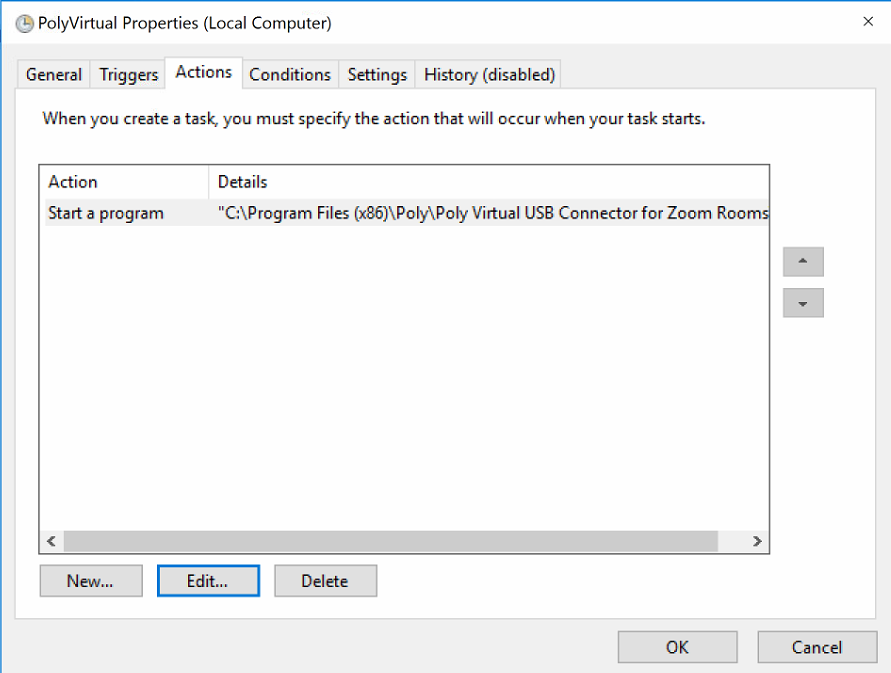
4. Under the Actions Tab, choose to start a program and use the PolyVUSB file location: C:\Program Files (x86)\Poly\Poly Virtual USB Connector for Zoom Rooms\PolyVUSB.exe
5. Click OK and verify by entering the ZoomAdmin password
At the next startup of Windows, the PolyVUSB.exe should start and the mic/speaker is available inside the Zoom Room settings if the Controller is connected to the same Zoom Room/using the same login credentials to Zoom Rooms.
If you have additional questions or need to contact DTEN Support, please refer to this DTEN Knowledge Base article for more details: HERE.